Why We Built a Local AI Video Clipper
For the past two years, I used cloud-based AI video clippers. Opus Clip, Klap, Vidyo — I tried them all. The workflow was always the same: upload your video, wait 20 minutes, pay per minute, download the results. It worked, but it never felt right.
Three things kept bothering me. First, I was uploading hours of unreleased podcast footage to servers I didn't control. Some of that content was under NDA. Some was client work. The privacy policies always had vague language about "using data to improve models." I couldn't give my clients a straight answer about where their footage went.
Second, the waiting. A 90-minute podcast takes 15-20 minutes just to upload on a decent connection. Then you wait in a processing queue. Then you download the clips. The actual AI analysis is fast — it's the transfer overhead that kills your workflow.
Third, the cost. Cloud-based clippers charge $19-49/month because they rent GPU servers to process your footage. That's $230-590 per year. Meanwhile, my Mac has an M2 chip with a Neural Engine that sits idle most of the day — hardware specifically designed for exactly this kind of AI workload.
So we built something that uses it. Reelify AI is an on-device video clipping tool that processes everything on your Mac. No uploads. No cloud servers. No per-minute billing. Drop in a video, get clips in 90 seconds. The whole pipeline — transcription, moment detection, captioning, export — runs on your Apple Silicon chip.
What "Local" Actually Means (and Why It Matters)
When we say "local," we mean the AI models are bundled inside the app and run on your hardware. Nothing is sent to a server. Here is what that looks like in practice:
Audio extraction and transcription — your Mac's Neural Engine transcribes the audio to text. This happens on-device using a speech recognition model that ships with the app. No audio leaves your computer. On an M2 chip, a 90-minute podcast transcribes in about 40 seconds.
Moment detection — the Pattern AI analyzes the transcript alongside audio waveforms to identify clip-worthy moments. It looks for hooks, emotional peaks, emphatic statements, topic shifts, and natural start/end points. This runs on your GPU using Metal Performance Shaders.
Visual analysis — the AI examines visual cues like speaker changes, gestures, and framing. For multi-person podcasts, it identifies the active speaker so the vertical crop follows the right person.
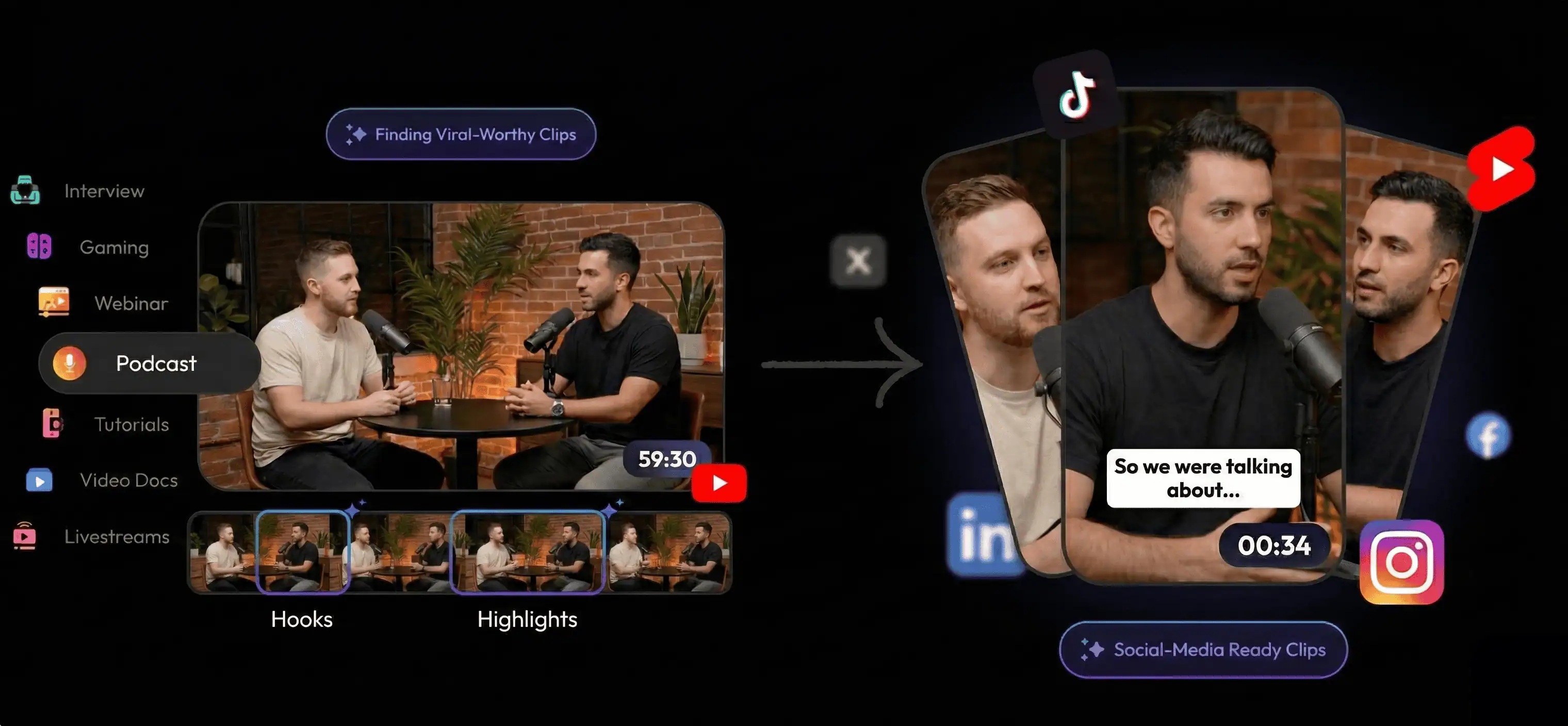
Clip generation and export — based on all these signals, you get 10-20 suggested clips with timestamps. Review them, adjust anything you want, and batch export in 9:16 vertical format with captions. The export uses hardware-accelerated encoding on your Mac.
At no point does anything leave your computer. Not the video file. Not the audio. Not the transcript. Not the clip suggestions. The entire pipeline runs on the silicon inside your Mac. This is what makes it a genuinely offline clipping tool — not a thin client that streams to a server.
On-Device Clipper vs Cloud Clipper: The Real Differences
I've used both extensively. Here's an honest comparison based on clipping the same 90-minute podcast episode through each approach:
| On-Device Clipper (Reelify) | Cloud Clipper (Opus, etc.) | |
|---|---|---|
| Total time | ~90 seconds | 25-40 minutes |
| Upload required | No | Yes (15-20 min for 1GB file) |
| Works offline | Yes | No |
| Privacy | Video never leaves your Mac | Uploaded to third-party servers |
| Cost | Free to start | $19-49/month (credit limits) |
| Processing limits | None | 60-600 minutes/month |
| 4K footage | No quality loss (local files) | Compressed during upload |
Cloud clippers are not bad products. Some of them have excellent AI. But the architecture creates friction that local processing eliminates entirely. When your video never leaves your hard drive, there is no upload, no queue, no download, no bandwidth cost. The total processing time equals the actual AI analysis time — nothing else.
Who Needs an Offline Video Clipper
Not everyone needs local processing. If you clip one short video per month and don't care about privacy, a cloud tool works fine. But local processing becomes essential in specific situations that are more common than people realize.
Agencies and freelancers handling client content
If you work with client footage under NDA, uploading to a cloud AI tool is a contractual risk. Privacy policies at most cloud clippers include language about using uploaded content "to improve services." I've had clients ask me point-blank where their footage goes. With a desktop-native clipper like this, the answer is simple and verifiable: it never leaves my computer. If you want the workflow angle for freelancers, agencies, and revision rounds, see the AI video clipper for client work page.
Creators with unreleased or embargoed content
Product launch videos, pre-release interviews, embargoed news segments. This material cannot end up on someone else's server before the release date. I've worked with creators clipping pre-launch product demos and unreleased music videos. For them, cloud processing was never even a consideration.
Podcasters and weekly content producers
If you produce a podcast every week, you are processing 4-8 hours of source video per month. At $0.50-2.00 per minute on cloud tools, that's $120-960 per year in processing costs alone. An on-device clipper costs nothing per clip because your own hardware does the work. The math is straightforward. If your main workflow is long-form podcast clipping, the dedicated offline AI podcast clipper page goes deeper on that use case.
Streamers sitting on hours of VODs
A single 6-hour Twitch stream processed through a cloud clipper costs $3-6 in credits. Five streams per week, four weeks per month — that is $60-120/month just in video processing. Or you could use a Mac-native clipper and process unlimited hours for free.
Anyone working without reliable internet
I've clipped videos on flights, in coffee shops with poor WiFi, and at locations with no internet at all. Cloud tools are useless without a stable connection. An offline clipper runs from your hard drive — your workflow does not depend on anyone else's servers.
How the On-Device Clipping Engine Works on Apple Silicon
The reason this works well specifically on Mac is Apple Silicon. The M1, M2, M3, and M4 chips have a dedicated Neural Engine — hardware built for running machine learning models efficiently. Most people only use it for Face ID and Siri. Reelify puts it to work on video analysis. If you want the hardware-specific breakdown, see the Apple Silicon AI video clipper page.
Here is the technical pipeline:
- Audio processing uses the Neural Engine for speech-to-text. It handles multiple languages and accents with high accuracy. A 90-minute file transcribes in about 40 seconds on M2 hardware.
- Moment scoring runs on the GPU using Metal Performance Shaders. The model evaluates each segment of the transcript against audio energy patterns, speech cadence, and visual signals to score viral potential.
- Visual tracking uses the Neural Engine again to identify active speakers, detect scene changes, and determine optimal cropping for vertical format.
- Export encoding uses hardware-accelerated H.264/HEVC encoding built into the chip. Even 4K exports are fast because the encode happens in silicon, not software.
This is why the free tier is unlimited. There are no server costs that scale with your usage. The compute is yours — we built the software to use it efficiently.
My Daily Workflow With On-Device Clipping
This is what a real content day looks like. Not a marketing scenario — actual daily use.
I finish recording a 75-minute podcast episode. I drag the file into Reelify. While I get up to make coffee, it has already analyzed the entire thing. I come back to 14 suggested clips on my screen. Total elapsed time: usually within a couple of minutes on a modern Mac.
I scan through the suggestions. Most are solid — genuine hooks, quotable moments, high-energy exchanges. I remove 3 that are too context-dependent to work as standalone clips. I adjust the start point on one clip by two seconds. I select the remaining 11 and hit batch export.
Two minutes later, I have 11 vertical clips sitting on my desktop. Each one has word-level captions synced to the audio and is formatted for TikTok, Instagram Reels, and YouTube Shorts. Ready to schedule.
Total time from "done recording" to "clips ready to post": about 12 minutes. No upload. No download. No cloud queue. No worrying about how many minutes I have left this month.
Compare that to my old cloud clipper workflow: upload the file (20 minutes), wait for server processing (10 minutes), review clips in a browser interface that struggles with 4K (10 minutes), download the finished clips (5 minutes), fix captions that did not render correctly (10 minutes). That is close to an hour, and I was paying $19/month for it.
Performance: What to Expect on Different Macs
Local processing speed depends on your hardware. Here are real benchmarks from a 90-minute podcast file:
| Mac Model | Analysis Time | Notes |
|---|---|---|
| M1 MacBook Air | ~2.5 minutes | Completely usable for daily clipping |
| M2 MacBook Pro | ~90 seconds | Sweet spot for most creators |
| M3 Pro Mac | ~60 seconds | Fastest experience, handles 4K effortlessly |
| M4 MacBook Pro | ~50 seconds | Near-instant for most video lengths |
A few practical tips from daily use: close browser tabs during processing — Safari and Chrome compete for GPU resources. Keep source files on your internal SSD, not an external drive. And do not worry about 4K vs 1080p — the AI analysis runs on audio and compressed video frames, so source resolution barely affects processing time.
What You Get With the Free Desktop Clipper
I want to be specific about what is included in the free tier, because "unlimited free" can sound like marketing. Here is exactly what you get for $0:
- Unlimited video imports — any length, any resolution, no file size cap
- AI moment detection — finds hooks, emotional peaks, quotable moments, and high-energy sections automatically
- Auto-captioning — generates word-level captions from your audio
- Timeline editing — adjust start and end points before export
- 9:16 vertical export — formatted for TikTok, Reels, Shorts
- Batch export — export all clips at once
- Active speaker detection — follows the right person in multi-speaker content
- Offline operation — works without any internet connection
The paid plans ($59 lifetime or $15/month) add the Viral Context AI, which uses deeper semantic analysis to understand what is being said and why it might go viral. The free tier's Pattern AI detects moments based on audio energy and speech patterns. Both are genuinely useful. But for most creators, the free tier handles 80% of what you need.
The Privacy Case for Local Video Clipping
Privacy is not a feature I added for marketing. It is a consequence of the architecture. When the AI runs on your Mac, there is no server to send data to. There is no privacy policy to worry about. No "we may use your content to improve our models" clause.
This matters in ways that are hard to appreciate until you are in one of these situations:
Client work under NDA
Uploading NDA-protected footage to a cloud AI tool is technically a breach — even if nobody finds out. I have seen agencies lose contracts over this. With an on-device clipper, you can truthfully tell clients: "Your content never left my computer." That sentence has won us more business than any feature.
Corporate and internal communications
Companies producing internal training videos, investor updates, or executive communications cannot use cloud tools. IT departments at large organizations have explicit policies against uploading internal video to third-party AI services. A local clipper is often the cleanest option that gets approved by security teams. If internal company footage is your main use case, the private corporate video clipper page goes deeper on that angle.
Unreleased and embargoed content
Product launch videos, pre-release interviews, unreleased music — this content cannot exist on anyone else's server before the release date. Local processing is the most reliable architecture that provides verifiable privacy for this kind of material.
How to Start Clipping Locally
- Download Reelify AI — it takes about 30 seconds. No account creation, no email, no credit card. Get it here.
- Drop in any video — podcast, stream VOD, interview, client footage. Any length, any format. If interviews are your main source material, the interview clip generator for Mac page is the cleaner fit.
- Review the AI's clip suggestions — adjust timing if you want, or batch export everything.
- Export and post — clips come out in 9:16 vertical format with captions, ready for TikTok, Reels, or Shorts.
The whole process takes about 10-15 minutes for a typical hour-long video. That is not a promise. That is what I do every day with this on-device clipping workflow.