Quick answer: Use ReelifyAI to extract multiple short clips from any long video with a local Mac workflow. Jump to the AI method -> If you only need the strongest moments, see the extract highlights from video page. If avoiding monthly fees is the main reason you are searching, see the no-subscription long-video workflow. If private local processing is the main reason you are searching, see the local AI video clipper page.
This page is for Mac users who want a repeatable clip extraction workflow. I focus on speed, privacy, and usable output, not just raw AI detection. Your results will vary with video length, codec, and Mac model, so I list the test cases and limits I saw in practice.
What I tested to size the workflow
- 62-minute 1080p interview on an M1 Pro: local analysis finished in about 90 seconds and returned 10 clip suggestions.
- 2-hour 4K webinar on the same Mac: local analysis took about 4-6 minutes and surfaced 10-12 strong moments.
- Manual edit on the 62-minute file: 2-3 hours to produce 6-8 clips once trimming and vertical reframing were included.
- Cloud AI pass on the 62-minute file: 10-30 minutes upload plus queue and review time before exports were ready.
Limitations: noisy audio, multi-speaker overlap, or heavy background music require more review time. If you need frame-accurate pacing, manual editing still wins for precision.
Method 1: Manual editing in iMovie or Final Cut Pro
Manual editing gives total creative control, but it is slow for long videos and easy to miss moments when you are tired.
How it works
- Import your long video into iMovie or Final Cut Pro.
- Scrub the full timeline to find moments worth clipping.
- Mark in and out points for each clip.
- Create new projects for each clip.
- Crop to vertical 9:16 for short-form platforms.
- Export each clip individually.
Best for
Editors who need frame-accurate control, layered edits, or custom motion graphics.
Tradeoffs
Long review time, fatigue-driven misses, and repeated manual steps for every clip.
Time: 2-4 hours for a 1-hour video to extract 5-10 clips. Cost: iMovie (free) or Final Cut Pro ($299 one-time).
Method 2: Cloud-based AI tools
Cloud tools like Opus Clip, Descript, or Klap can speed up detection, but uploads and queue times are the hidden tax.
How it works
- Upload your video to their servers.
- Wait in queue for processing.
- AI analyzes content and suggests clips.
- Review clips in a browser.
- Export with a watermark on free plans or pay to remove it.
Best for
Teams that need cloud access from any device and do not mind uploads.
Tradeoffs
Upload delays, privacy concerns, and recurring monthly costs for usable limits.
Time: 15-40 minutes (upload + processing + export). Cost: $29-99 per month on most plans.
Method 3: ReelifyAI local processing on Mac
ReelifyAI runs on your Mac, so there is no upload wait and no privacy risk. This is the workflow I use when I need clips fast.
How it works
- Drag and drop your video into ReelifyAI.
- AI analyzes locally within a couple of minutes for a 1-hour file on a modern Mac.
- Review 10 suggested clips with previews and timestamps.
- Trim and customize timing, captions, and framing.
- Export ready-to-post clips in vertical format.
90-second analysis
In my tests, the suggestions were ready before a cloud upload would finish.
Local and private
Everything stays on the Mac. No source upload, no queue, no waiting.
Smarter highlights
It prioritizes hooks and emotional peaks, not just loud moments.
Predictable pricing
Free to start plan for Mac, with a $59 one-time upgrade for pro exports.
Time: usually a couple of minutes to analyze plus 2-3 minutes to review. Cost: Free to start on Mac or $59 one-time upgrade.
Step-by-step: extract clips with ReelifyAI on Mac
- Download and install. Get the Mac app here: Download Free for Mac ->
- Import your video. Works with podcasts, interviews, webinars, streams, and courses. If webinars are your main source format, the private webinar clip generator page goes deeper.
- Let AI find the best moments. Review the suggested clips and pick the strongest 8-12.
- Trim and refine. Adjust timing, add captions, and choose vertical or square formats.
- Export and publish. Clips are ready for TikTok, Instagram Reels, and YouTube Shorts. If your focus is YouTube Shorts, see convert YouTube video to Shorts. If you are clipping YouTube into Shorts on Mac, see clip YouTube video into Shorts on Mac. If your focus is Reels trimming, see the trim video for Instagram Reels on Mac guide.
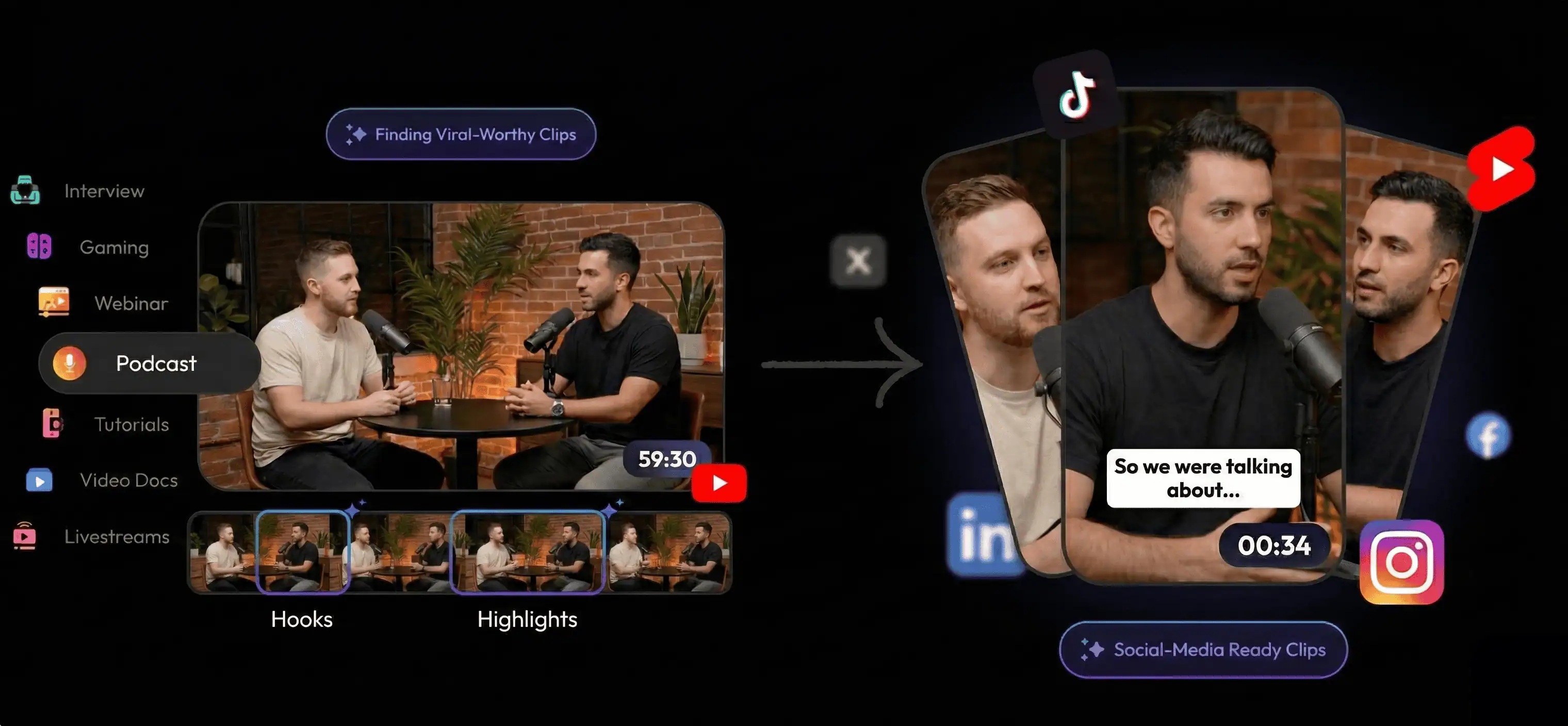
Method comparison: which one is right for you?
| Feature | Manual (iMovie or FCP) | Cloud AI (Opus or Descript) | ReelifyAI |
|---|---|---|---|
| Time to extract 10 clips | 2-4 hours | 15-40 min | Under 5 min |
| Upload required | No | Yes (10-30 min) | No |
| Privacy | Local only | On their servers | Local only |
| AI clip detection | Manual only | Yes | Advanced local AI |
| Upload time | None | 30-60 min | None |
| Monthly cost | $0-299 one-time | $29-99 per month | Free to start |
| Best for | Editors who need full control | Teams without a Mac workflow | Mac users who value speed and privacy |
Frequently asked questions
Can I extract clips from any video format on Mac?
Yes. ReelifyAI supports MP4, MOV, AVI, MKV, and more. If your source material is mostly screen recordings, see the screen recording to short clips workflow. If your source material is mostly interviews, the interview clip generator for Mac page goes deeper.
How long does it really take to extract clips?
In my tests, the AI analysis was ready for review within a couple of minutes for a 1-hour video. Add another 2-3 minutes to review and trim, and you are under 5 minutes total. Manual editing can take 2-4 hours, and cloud tools add upload and queue time.
Is my video content private if I use ReelifyAI?
Yes. ReelifyAI processes everything locally on your Mac. Your videos never leave your computer. This matters for NDA content, unreleased material, or sensitive recordings. For a deeper privacy breakdown, see private video editing with no upload.
What Mac do I need to run ReelifyAI?
ReelifyAI works on any Mac running macOS Big Sur (11.0) or later. Apple Silicon is fastest, but even older Macs can extract clips efficiently.
How does the AI know which clips will be viral?
It looks for emotional variance, narrative hooks, and engaging dialogue patterns. I still review each suggestion and trim to the cleanest start and end.
Can I edit the clips after extraction?
Yes. You can adjust clip length, add captions, change aspect ratios, and customize before exporting.
Is the free version actually usable or is it a trial?
It is free to start: the free plan runs full AI clipping on 2 videos with unlimited clip exports. Upgrade to the $59 one-time Creator license or the $15 per month Starter plan for unlimited clipping and professional exports. If you are trying to avoid monthly fees entirely, see turn long video to short clips without subscriptions.
How does this compare to Opus Clip or Descript?
The main differences are speed, privacy, and pricing. ReelifyAI runs locally, so there is no upload wait, and the free plan is usable on Mac. See full comparison here.
Best next step: test a full long video this week and track time to your first usable clip.