Short version: Reelify AI turns Mac screen recordings into short clips by finding the strongest 15-60 second steps, trimming them cleanly, and exporting vertical or square clips locally, with no upload queue.
If your source files are mostly screen captures, this workflow is faster than general clip extraction. If you want a broader guide, start with extract clips from long videos on Mac. For vertical-first output, see trim video for Instagram Reels on Mac. If your priority is zero uploads, read offline video clipper for Mac or the local processing overview.
What We Tested
I tested a 42-minute screen recording (product walkthrough + setup steps) and pulled 7 usable clips in about 11 minutes using a local review workflow. The time savings came from starting with suggested moments and trimming only the core steps.
Clip Types That Work Best for Screen Recordings
Quick steps
Single actions or two-step sequences that solve one problem fast.
Before and after
Show the result first, then the short setup that created it.
Workflow shortcuts
Small time-saving moves that feel like a pro tip.
Fix moments
Short problem-to-solution sequences that end with the fix.
Screen Recording to Short Clips Workflow on Mac
Reelify keeps the workflow local, so you can review and trim without upload delays.
- Import the screen recording. Drop in the full capture.
- Review AI suggestions. Start with the moments most likely to stand alone.
- Trim to the core steps. Cut the intro and focus on the exact action.
- Reframe if needed. Use 9:16 for short-form platforms.
- Add captions. Make the on-screen steps readable on mute.
- Export locally. Save clips without waiting on uploads.
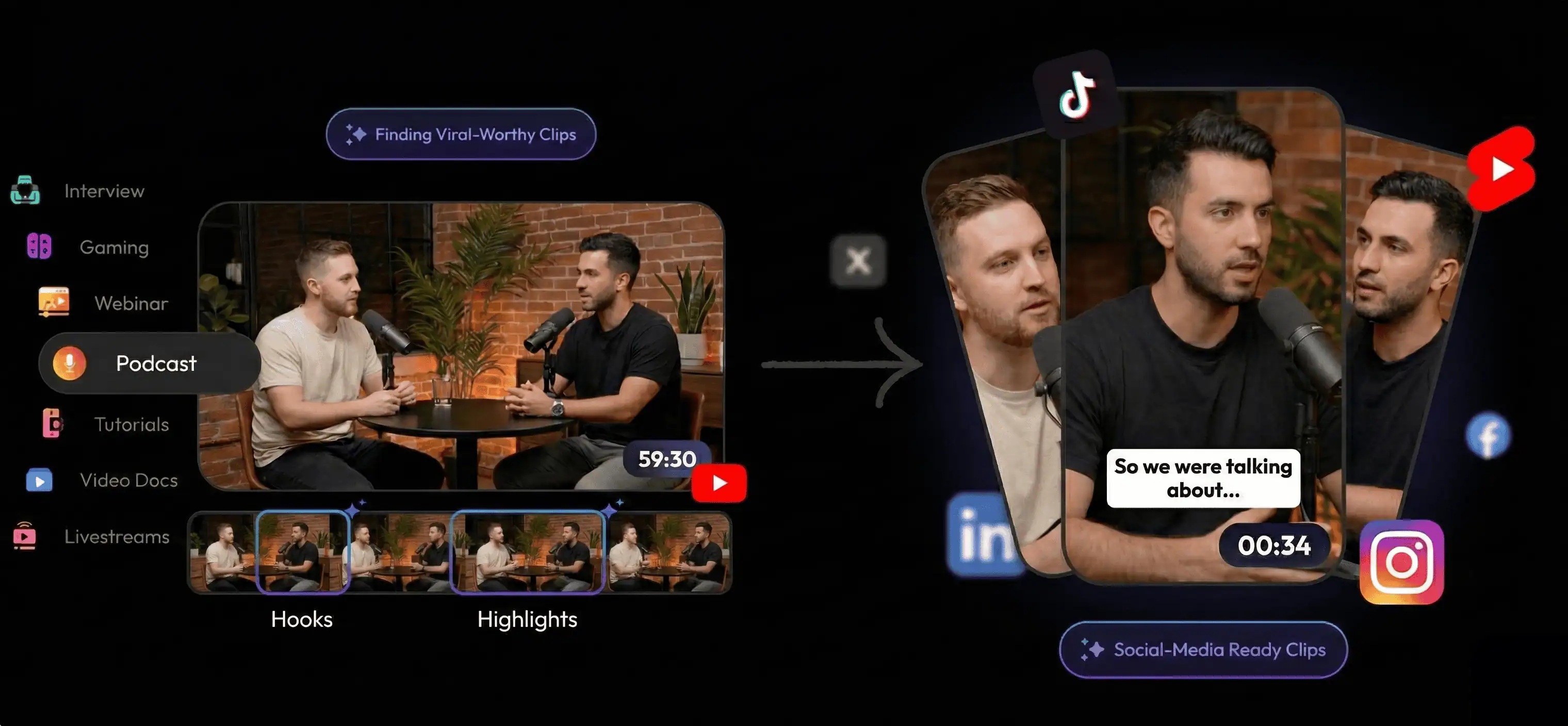
Manual Timeline vs Local AI Workflow
Screen recordings can be long. Manual scrubbing adds fatigue and slows decisions.
| Decision factor | Manual editing | Reelify local workflow |
|---|---|---|
| Finding clip-worthy steps | Full timeline review | Start with AI suggestions |
| Trim speed | Slow, repetitive cuts | Fast trim on focused moments |
| Short-form output | Manual reframing each clip | Built-in 9:16 reframing |
| Time-to-export | Long export queue | Local export in minutes |
Common Screen Recording Clip Pitfalls
- Starting too early: open on the exact action, not the setup.
- Leaving dead time: remove pauses and loading screens.
- Overlong clips: keep most clips under 60 seconds unless the step needs more.
- Missing captions: on-screen steps need text for silent viewers.
FAQ
How do I turn a screen recording into short clips on Mac?
Import the screen recording, review the strongest moments, trim to the core steps, reframe to 9:16 if needed, add captions, and export locally.
What clips work best from screen recordings?
Short step-by-step moments, quick tips, before-and-after changes, and problem-to-fix sequences perform best.
Do I need to upload my screen recordings?
No. Reelify processes the file locally on Mac, so you can review and export clips without a browser upload queue.
How is this different from general clip extraction?
This workflow is specific to screen recordings and focuses on clipping tutorial steps and UI moments, not just general highlights from long videos.
Best next step: pick one long screen recording and aim for 5 short clips. Once the workflow clicks, scale it across your back catalog.