Short version: Reelify AI turns long videos into short clips without a subscription: import, review AI picks, trim, caption, and export on your Mac, then pay $59 once for the Creator license if it fits. There are no upload minutes or credits.
This page focuses on the no-subscription path to short clips. It is about cost predictability for long-video workflows: no monthly fees, no upload-minute caps, and no surprise tier jumps. If you want the broader pricing breakdown, see AI video clipper with no subscription. For a general extraction workflow guide, see extract clips from long videos on Mac. For Shorts-specific offline workflows, see offline AI video shorts generator.
What We Tested
I tested a 74-minute webinar recording and pulled 9 short clips in 12 minutes on an M2 Mac. The no-subscription workflow saved the upload wait and kept review focused on the strongest moments. Results vary by content density, but the time savings come from skipping minute caps and queues.
Why Subscriptions Hurt Long-Video Workflows
Subscription tools charge by the month and often hide limits in the fine print. If you record 2-3 hours of content each week, you hit upload-minute caps fast. That means more upgrades or waiting for the billing cycle to reset.
Minute caps
Long videos consume your entire monthly allowance quickly.
Queue delays
Uploads and cloud processing slow the clipping loop.
Unpredictable costs
Busy months trigger higher tiers or overage fees.
Workflow friction
Every upload adds a step before you can even review clips.
No-Subscription Workflow on Mac
Reelify keeps the clipping flow local so you can process long videos without paying per-minute fees. This page is mainly about removing pricing friction from a repeat clipping workflow.
- Import the long video. Drop in the source file from your Mac.
- Review AI suggestions. Start with the strongest moments.
- Trim to the core beat. Remove setup and get to the hook fast.
- Reframe for vertical. Use 9:16 for Shorts, Reels, and TikTok.
- Add captions. Keep the clip readable on mute.
- Export locally. Save clips without upload queues.
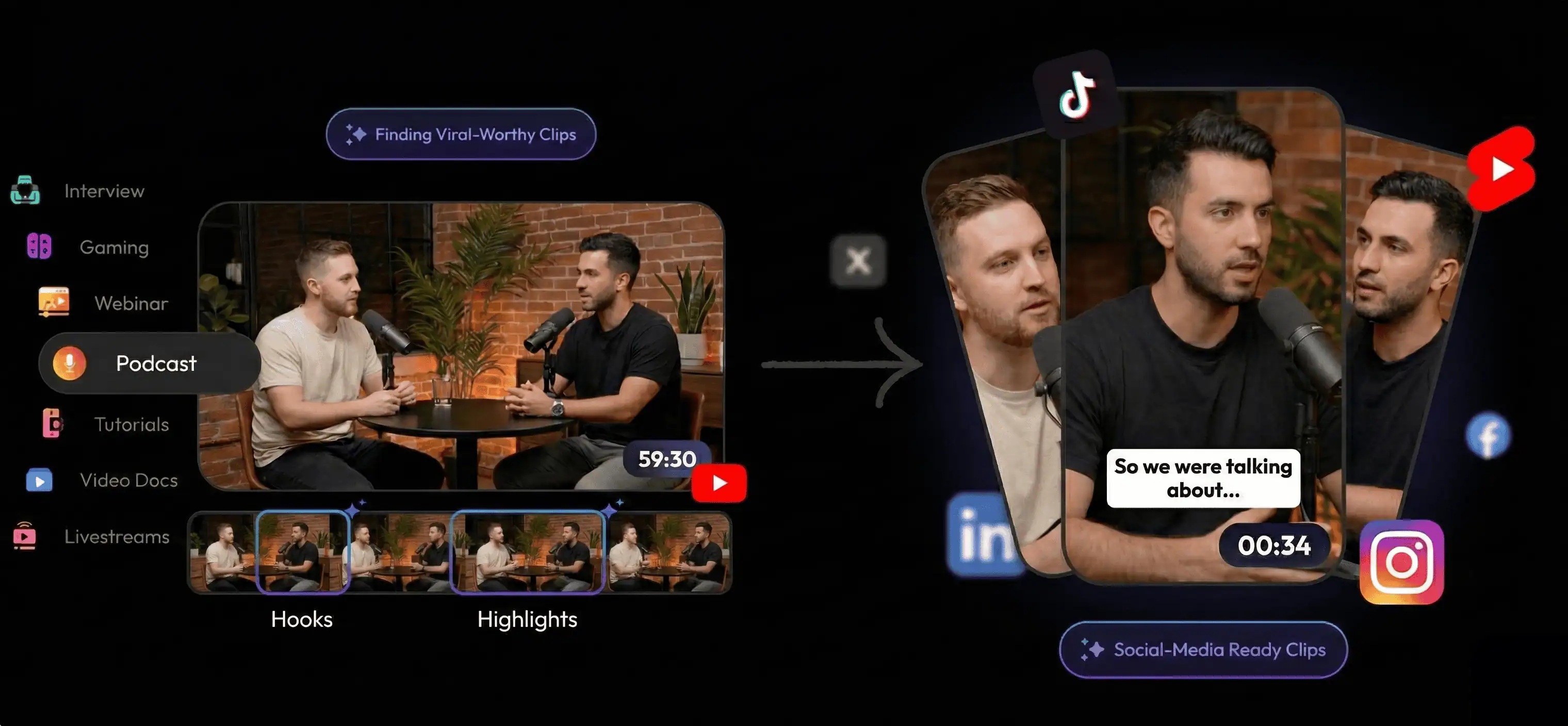
Subscription Tools vs No-Subscription Workflow
If you work with long videos, the difference is mostly about predictability. This is the page to read when budget creep and usage caps are the main pain.
| Decision factor | Subscription tools | Reelify local workflow |
|---|---|---|
| Monthly cost | Recurring fees + tiers | Free local workflow |
| Upload minutes | Hard caps or overages | No monthly minute caps |
| Start time | Upload before review | Open the file and review |
| Export speed | Cloud render queues | Local export in minutes |
FAQ
Can I turn long videos into short clips without a subscription?
Yes. Reelify runs locally on Mac, so the core workflow works without a monthly subscription or cloud upload limits.
Is a no-subscription workflow the same as offline?
Not always. No-subscription means you are not paying monthly. If you also need offline-first processing, use the offline shorts workflow.
How many clips can I make without paying monthly?
The local workflow is not limited by upload minutes, so you can clip as many long videos as you need on your Mac.
When should I consider a one-time upgrade?
If you need advanced scoring or batch exports, the lifetime deal page covers the one-time upgrade without turning your workflow into a subscription.
Best next step: run one long video through the free workflow and see how many short clips you can publish without paying monthly fees.