Short version: Reelify AI turns private webinar recordings into short clips on your Mac, without pushing long or sensitive recordings through a browser upload. It finds strong explanations, demo moments, and Q&A answers, then captions and exports them locally.
Most webinar pages talk about “content repurposing” in a vague way. The real workflow is more specific. You have a 45-minute demo, training, customer education session, or founder webinar. You know there are multiple useful clips inside it. The question is how to pull them out quickly without creating more process friction than the clips are worth.
This page is about webinar-specific repurposing: demos, training, customer education, and internal recap moments that need to be turned into reusable short clips without adding more workflow friction.
Why Webinars Need a Different Clipping Workflow
A webinar is not just another long video. It usually has a mix of scripted presentation, live explanation, audience questions, and practical examples. That means one recording can produce very different kinds of short clips depending on the goal.
Marketing clips
Pull out strong positioning lines, founder quotes, feature walkthroughs, and audience hooks for social posts.
Customer education clips
Reuse the clearest explanatory moments for onboarding, follow-up emails, and help content.
Internal recap clips
Share a few key moments internally without asking everyone to rewatch the full event.
The source recording may also be semi-private before the repurposed clips are ready. That is common with product webinars, training sessions, internal demos, and customer-only education events. A local workflow makes that easier to handle.
What Clips to Pull From a Webinar
If you are staring at a long webinar recording, these are usually the highest-value moments to extract first:
- A sharp opening explanation of the problem or topic
- A concise product demo moment that shows a clear outcome
- A customer education tip that stands on its own
- A memorable founder or presenter quote
- A strong audience Q&A answer
- An objection handled clearly in plain language
How the Private Webinar Workflow Works
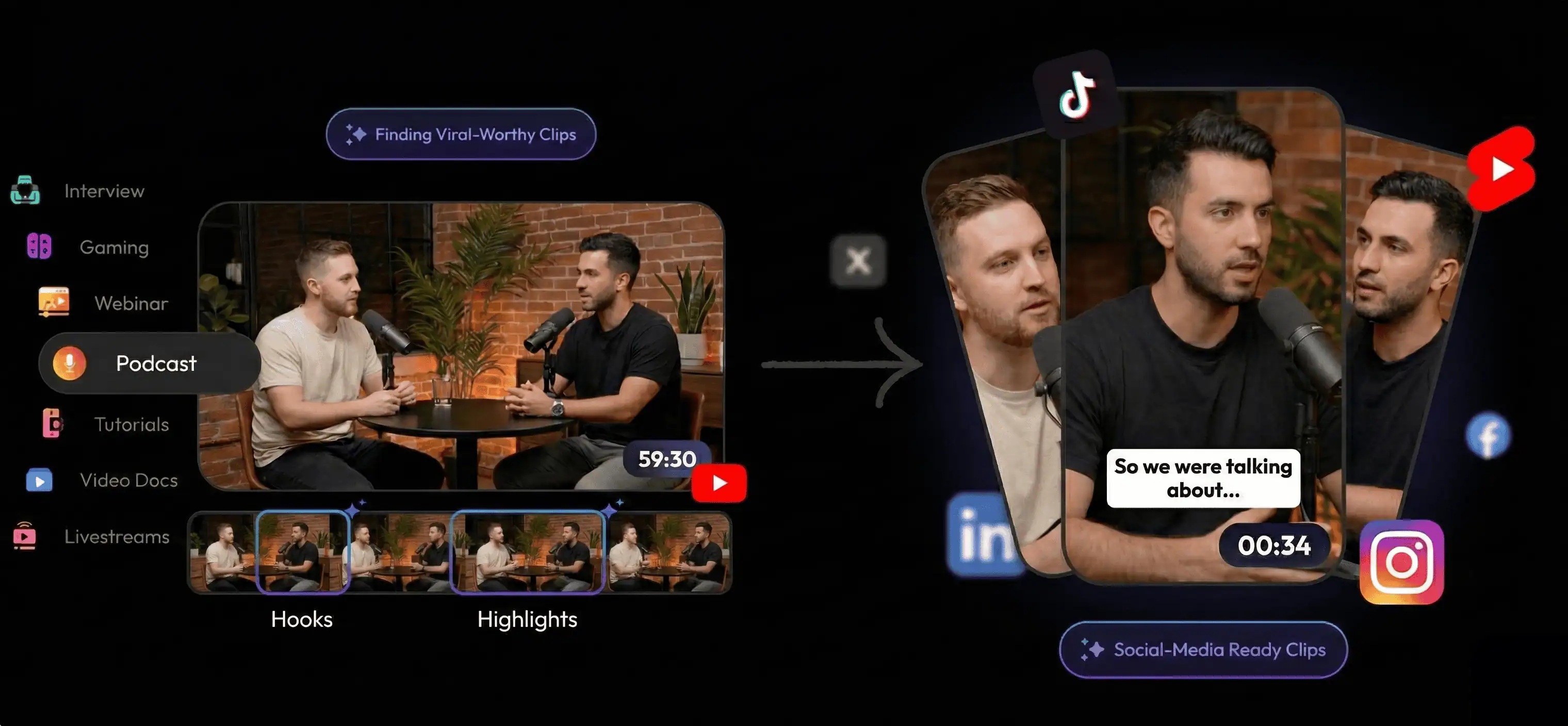
With Reelify, you import the webinar recording on your Mac, review suggested moments locally, clean up anything that needs a tighter start or end, and export the clips you want to reuse. The source file stays in your local workflow instead of being pushed into a cloud queue first.
- Bring in the webinar recording. Product demo, training session, customer webinar, or internal presentation.
- Review the strongest moments. Look for the segments that can stand on their own as clips.
- Export for the right destination. Social, email follow-up, internal recap, or help content.
- Keep the full source file under tighter control. Share only the outputs you actually want others to see.
Cloud Webinar Workflow vs Local Webinar Workflow
| Workflow step | Browser upload flow | Reelify local workflow |
|---|---|---|
| Start with webinar recording | Upload a large file and wait for transfer | Open the recording directly on your Mac |
| Review clip candidates | Wait through queue and processing first | Review suggested moments locally after analysis |
| Handle semi-private source video | Source file moves through a third-party web workflow | Source file stays in your local workflow |
| Repurpose into multiple outputs | Often requires extra roundtrips | Adjust and export multiple clip types locally |
| Best fit | Teams comfortable uploading full webinar recordings | Teams that want tighter source control and faster iteration |
Best Fit
Marketing teams
If your webinar program feeds social, email, and post-event content, clipping the recording quickly matters because the value drops fast when repurposing is delayed.
Customer education and success teams
Webinars often contain clean explanatory moments that are perfect for onboarding follow-up, educational snippets, and support content. You do not always need the whole event. Sometimes you just need the clearest 30 seconds.
Internal training and product teams
Some webinar-like recordings are not public at all. Internal demos, enablement sessions, and product trainings still benefit from clipping, but they usually benefit from a more controlled workflow too. If your scope is broader internal company video beyond webinar recordings, the private corporate video clipper page is the better fit.
When This Page Is Not the Right Fit
If your main concern is broad privacy positioning across many video types, go to private video editing no upload. If your main need is general long-form clipping on Mac, visit extract clips from long videos on Mac. If you are handling client delivery workflows beyond webinars, the client-work page is the better fit.
FAQ
Can Reelify AI clip private webinars?
Yes. It fits webinar recordings that you want to review and repurpose locally on Mac instead of routing through a browser upload workflow first.
What webinar moments usually make the best clips?
Strong opening explanations, product demo moments, great Q&A answers, concise educational segments, and quotes that still make sense outside the full webinar.
Is this useful for internal trainings and demos too?
Yes. Many internal recordings have the same structure as webinars: one long video with several reusable moments inside it.
How is this different from the private no-upload page?
This page is specifically about webinar repurposing. The private page is broader and covers many kinds of sensitive or local-first video workflows.
Best next step: run a real webinar recording through Reelify and see how many social, recap, or education clips you can pull from one session without leaving your Mac-based workflow.