AI Podcast Clip Generator for Mac
Reelify AI is a Mac app that turns a long podcast episode into short vertical clips. It transcribes the recording on your Mac, finds the strongest moments and hooks, reframes them to 9:16, adds captions, and exports clips for TikTok, Instagram Reels, and YouTube Shorts. The video file is never uploaded. It is free forever on Mac, with no watermark and no credit card.
Free forever. No watermark, no credit card. For Apple Silicon Macs. No Mac? Clip free and unlimited on iPhone.
Reelify AI at a glance
- Best for
- Video podcasts and interview shows that run 10 minutes or longer
- Input
- A video file stored on your Mac
- Output
- Captioned vertical 9:16 clips for TikTok, Instagram Reels, and YouTube Shorts
- Processing
- On your Mac. The video is not uploaded. See privacy policy for optional cloud features.
- Requirements
- Apple Silicon Mac (M1 or newer), macOS 15 or later
- Languages
- 20+ languages, including Chinese, Japanese, and Korean
- Price
- Free forever on Mac, with no watermark and no credit card. Creator is $59 once with no subscription, or Starter is $15 per month. See pricing.
Requirements and pricing last checked October 2026.
What makes a podcast clip worth posting
A podcast episode is an hour or more of conversation, and most of it is not clip material. A clip that holds attention usually has four things.
- A hook in the first seconds. A claim, a question, or a surprising statement instead of a warm-up sentence.
- A complete thought. It begins where the topic begins and ends after the point lands, not mid-sentence.
- Captions. Most short-form video is watched with the sound off.
- Vertical framing. A 9:16 crop that keeps the person speaking in view.
Reelify covers the first two by reading the transcript for strong opening statements and for points where the conversation changes topic, rather than looking only at loudness. Captions and reframing are applied in the same workflow. The output is a set of suggestions, so you review and adjust each clip before exporting.
How Reelify turns an episode into clips
-
Import the recording
Drop in the full video file. It is read from your drive, with no upload or compression step first.
-
Transcribe and analyze on your Mac
Speech is transcribed and scanned for hooks, topic changes, and quotable statements.
-
Review the suggested clips
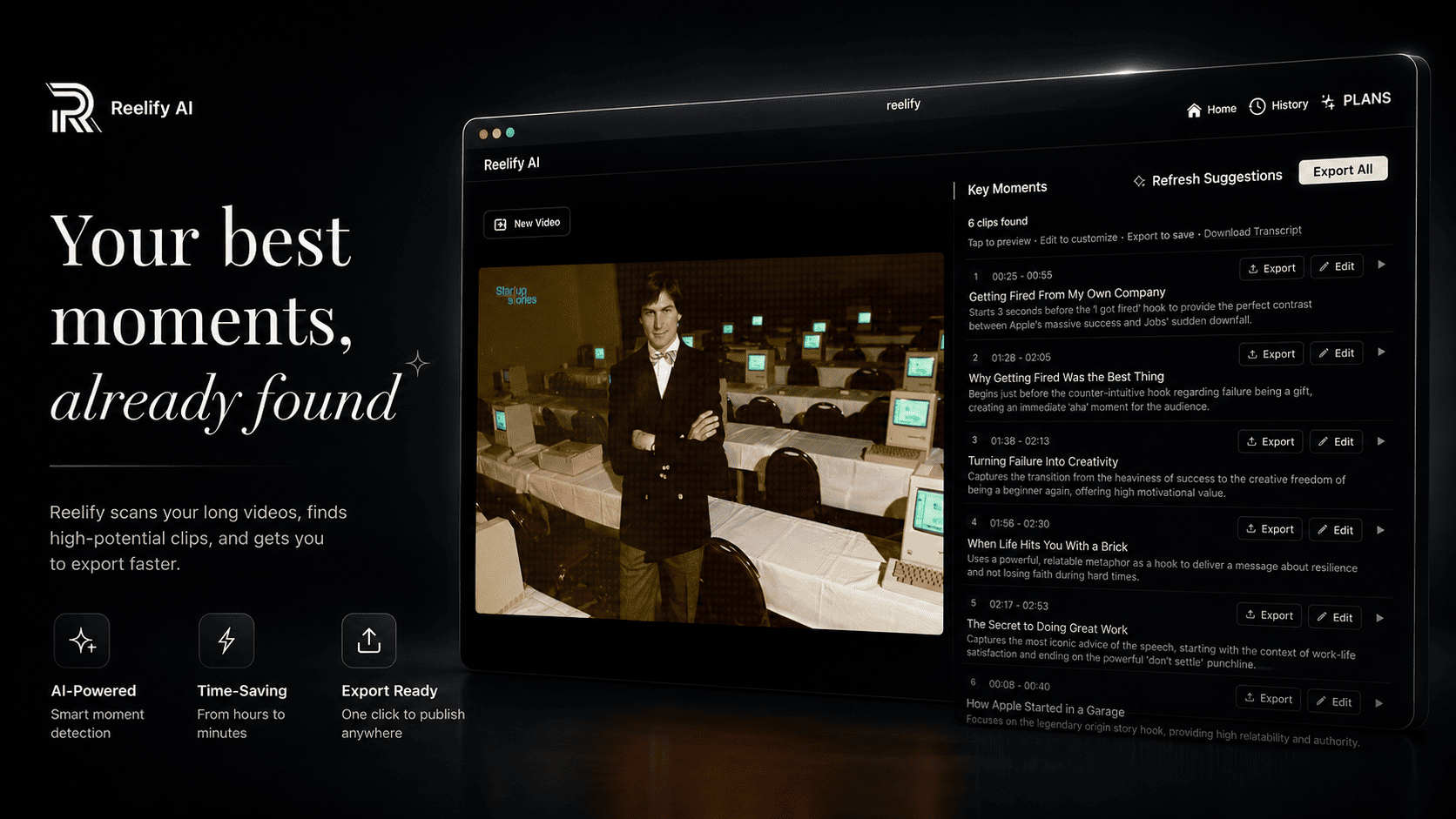
Key Moments lists each clip with its time range, a title, and a note on the hook. Preview a clip, edit its start and end, or regenerate for more options.
-
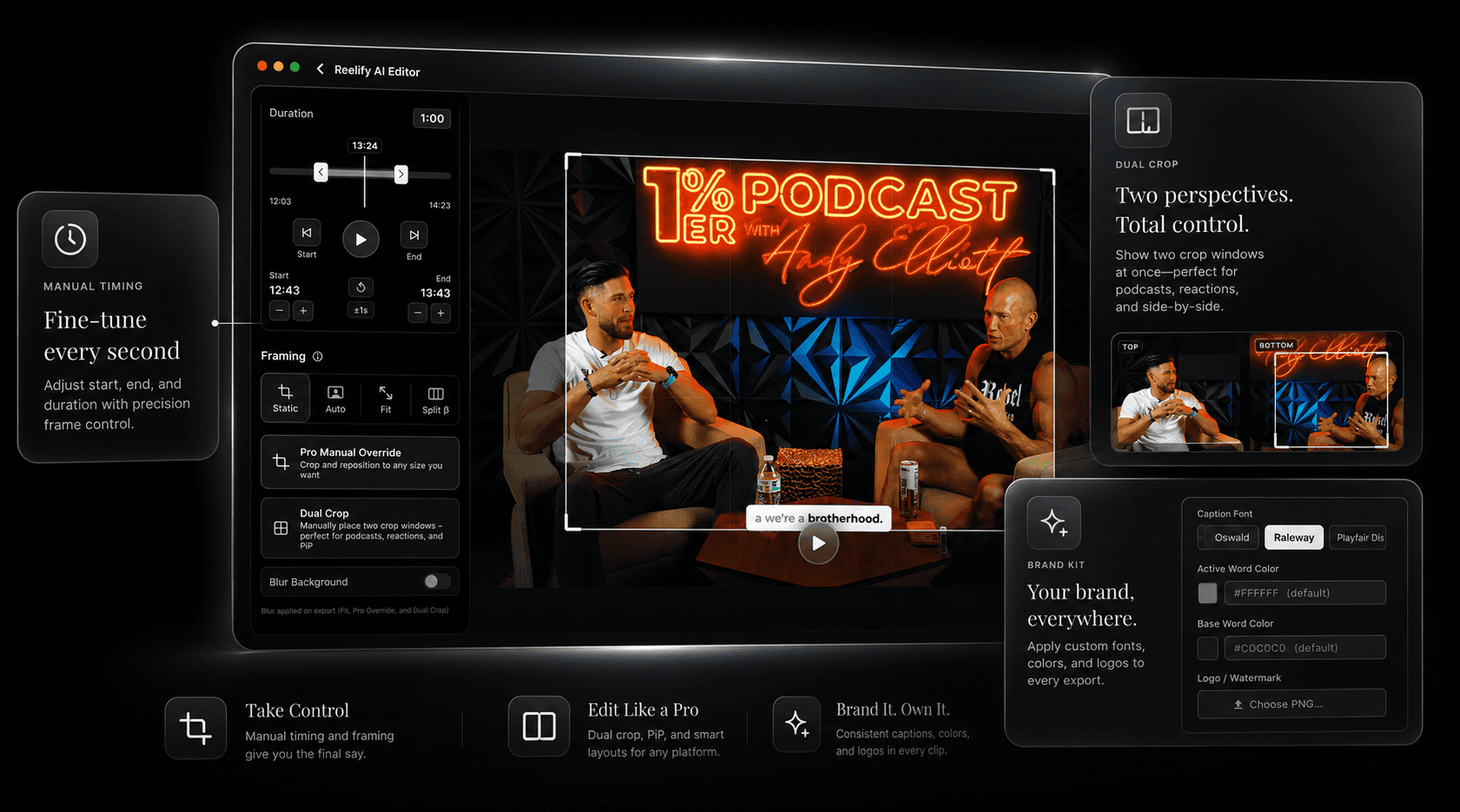
Reframe and caption
Clips are cropped to vertical 9:16 and captioned so they read without sound.
-
Export
Export a single clip or all of them in 1080p with no watermark.
See the workflow in 18 seconds
This short demo shows a video being dropped into Reelify, the clips screen listing the suggested moments, and a simple clip exported with captions. It has no audio.
Where Reelify fits, and where it does not
Reelify is a clipper. It is strongest on long, speech-led video and weaker outside that.
A good fit
- Video podcasts and interview shows of 10 minutes or longer
- Weekly shows, where an upload wait would repeat every episode
- Unreleased or confidential recordings, such as client interviews
- Producers who want suggestions to review instead of a blank timeline
Not a fit
- Windows or Intel Mac users. There is a Windows waitlist.
- Audio-only shows. Reelify is built around video, so test one episode first.
- Full editing such as multi-camera switching, b-roll, or color work
- Recordings under about 10 minutes, where a manual trim is often quicker
Reviewing clips by podcast format
The suggestions are a starting point. What you check during review depends on the show.
| Format | What usually makes a strong clip | What to check before export |
|---|---|---|
| Interview | A guest answer that tells a complete story or makes a clear claim | Whether the host's question is needed for the answer to make sense |
| Solo or educational | A self-contained lesson or a single clear takeaway | That the clip opens on the point, not on the setup |
| Comedy or banter | A punchline together with enough setup to land | That the start is early enough to include the setup |
| Panel of three or more | One disagreement or exchange between two people | The vertical framing on wide shots with several people |
Reelify compared with manual editing and cloud clippers
| Factor | Manual in an editor | Cloud AI clippers | Reelify AI |
|---|---|---|---|
| Finding moments | You scrub the full episode | AI suggests clips | AI suggests clips, with a time range and hook note for each |
| Upload | None | Full file uploaded first | None. The file stays on your Mac |
| Pricing model | Editor license or subscription, plus your time | Often a subscription with monthly credits or minutes | No credits or per-minute billing. Free forever on Mac, or $59 once with no subscription |
| Unreleased episodes | Stays local | Depends on the provider's storage and terms | Video stays local. Optional cloud AI features send only the transcript |
| Platform | Mac or Windows | Any browser | Apple Silicon Mac only |
For direct comparisons, see Reelify AI vs Opus Clip, the Klap alternative, and the Descript alternative.
Frequently asked questions
How do I turn a podcast episode into short clips with AI?
Import the full video file into Reelify AI, let it transcribe and analyze the episode, then review the suggested clips in the Key Moments list. Trim or edit any clip, then export one or all of them as captioned vertical videos for TikTok, Instagram Reels, or YouTube Shorts.
Does Reelify upload my podcast?
No. The video file is processed on your Mac and is not uploaded. According to the privacy policy, optional cloud AI features may send only the text transcript for analysis, never the video.
What do I need to run Reelify?
An Apple Silicon Mac (M1 or newer) running macOS 15 or later. Intel Macs and Windows are not supported. There is a Windows waitlist.
Can Reelify clip audio-only podcasts?
Reelify is built around video recordings, so audio-only episodes are not its main use case. If your show is audio-only, test one episode on the free plan, which needs no credit card.
How long should the episode be?
Reelify works best on talking-head footage of 10 minutes or longer. For shorter recordings, trimming by hand is often just as quick.
Which languages does Reelify support?
AI clipping supports more than 20 languages, including Chinese, Japanese, and Korean.
Is Reelify a full video editor?
No. Reelify finds, trims, reframes, and captions clips. It is not a full timeline editor, so multi-camera switching, b-roll, and color work still belong in a dedicated editor.
How much does Reelify cost?
Reelify for Mac is free forever, with unlimited video imports, AI clipping on every video, and 1080p exports with no watermark. No credit card and no time limit. The Creator plan is $59 once, with no subscription, and adds unlimited exports from every video, all caption styles, and the full editing suite. The Starter plan is $15 per month with the same features. See current pricing.
Try it on your next episode
Run one episode through the free plan, with no watermark and no credit card, and judge the suggested clips against the ones you would have picked by hand.
Apple Silicon Mac, macOS 15 or later. Rated 4.9★ on the App Store.