Short version: Reelify AI clips podcasts into Instagram Reels automatically on your Mac: it finds quotable moments, reframes to 9:16, adds captions, and exports, with no upload of the full episode. Try it free on 2 episodes before paying anything.
This page is for podcasters who want Reels clips without spending hours on manual trims. For a broader podcast clipping overview, see the podcast clip generator page. For a general Reels trimming guide, the trim video for Instagram Reels on Mac page covers the platform basics.
Why Reels from Podcasts Work
Podcast clips give Instagram a steady stream of short, human, conversational moments. The best Reels usually contain a strong hook, a clear takeaway, and a clean end. Automation helps you get there without scrubbing a full episode by hand.
Hooks happen fast
The opening seconds decide whether viewers stay, so trimming around the hook is critical.
Clean endings matter
Cut after the point lands so the clip feels complete and rewatchable.
Vertical framing wins
Reels need a tight 9:16 crop with faces centered, not wide podcast framing.
Automatic Podcast to Reels Workflow
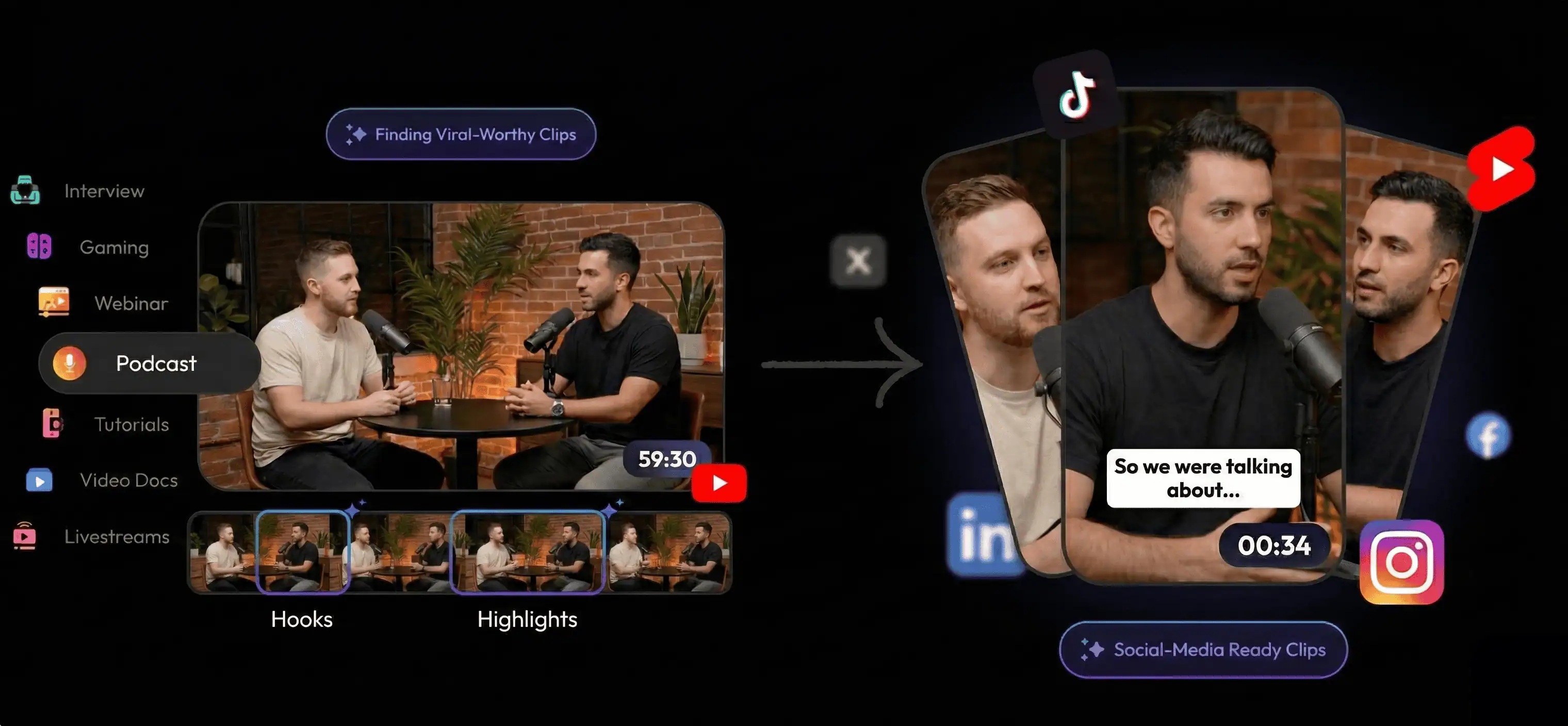
Reelify keeps the entire clipping loop on your Mac, so you can iterate without upload queues. The workflow looks like this:
- Import the episode. Drop in the full podcast recording.
- Review AI highlights. Start with suggested moments worth clipping.
- Trim for Reels. Cut to the strongest exchange and remove filler.
- Reframe to 9:16. Keep speakers centered in vertical format.
- Add captions. Make clips readable on mute.
- Export locally. Save Reels-ready clips without upload delays.
Manual Editing vs Automatic Reels Workflow
Manual clip editing can work for occasional clips, but a repeatable podcast-to-Reels workflow saves time when you publish weekly.
| Decision factor | Manual trimming | Reelify local workflow |
|---|---|---|
| Finding highlights | Full-episode scrubbing | AI suggestions first |
| Reels formatting | Manual crop adjustments | Automatic vertical reframing |
| Captioning | Separate tools or manual edits | Built-in captions during trimming |
| Processing | Local, but slower iteration | Local and faster iteration |
Reels Trimming Checklist for Podcasters
- Start at the hook: open on the strongest sentence or reaction.
- Trim the setup: remove context that belongs in the full episode.
- Keep faces centered: vertical framing should keep the speaker in view.
- Use captions: Reels perform better when they are readable on mute.
- End with impact: stop after the takeaway lands.
Best Fit for This Workflow
Podcast teams publishing weekly
If you publish consistently, automation keeps Reels output steady. For a longer-form strategy guide, see the podcast to social media clips strategy page.
Mac users who need privacy
Reelify runs locally, which helps with sensitive interviews. If privacy is the main priority, see the offline AI podcast clipper page.
Creators trimming across platforms
If you also publish to TikTok, the TikTok clip generator page covers the TikTok-specific workflow.
FAQ
How do I clip a podcast into Reels automatically?
Import the episode, review AI suggested moments, trim for Reels, reframe to 9:16, add captions, and export locally. A local workflow keeps iterations fast.
Does Reelify export in vertical 9:16 for Reels?
Yes. Reelify keeps speakers centered and exports vertical clips that are ready for Instagram Reels.
Can I clip podcasts into Reels without uploading?
Yes. Reelify processes your podcast clips locally on Mac, so you can trim and export without uploading footage.
How long should podcast Reels be?
Instagram updates Reels limits periodically, but most podcast Reels work best when they stay tight and focused. Trim to the strongest exchange and remove filler.
Best next step: run one episode through the local workflow and see how many Reels-ready clips you can publish this week.