Short answer: Opus Clip processes video on its cloud servers, so every file you clip has to be uploaded. Its pricing page (checked September 2026) lists project storage that expires after 3 days on Free and 29 days on Starter, and 100GB of cloud storage on Pro. If you need footage to stay on your own device, Reelify AI clips locally on Mac and never uploads video.
Most creators searching this question are not asking about features. They are asking about risk. If you handle client work, NDA footage, or unreleased content, uploading to a third-party server is a meaningful decision.
If you are comparing tools on cost and clipping quality, see the Reelify vs Opus Clip comparison or the Opus Clip alternative page. This page is only about storage and privacy.
What Cloud Uploads Usually Mean
Any cloud-based clipper must upload your video to process it. That generally means the file is transferred, stored, analyzed, and then deleted based on the provider's policy. Because policies change, you should verify the exact retention and usage terms before uploading sensitive footage.
Retention window
Check how long files are stored after processing and whether you can request deletion.
Training usage
Look for clauses about using uploads to improve AI models or services.
Access controls
Understand who can access uploaded files and how they are secured at rest.
How Reelify Avoids the Storage Question
Reelify runs locally on Mac, so the source video stays on-device. You still get AI clip suggestions, captions, and vertical reframing without a large upload queue. That is why it pairs well with privacy-first workflows like private video editing with no upload or NDA content clipping.
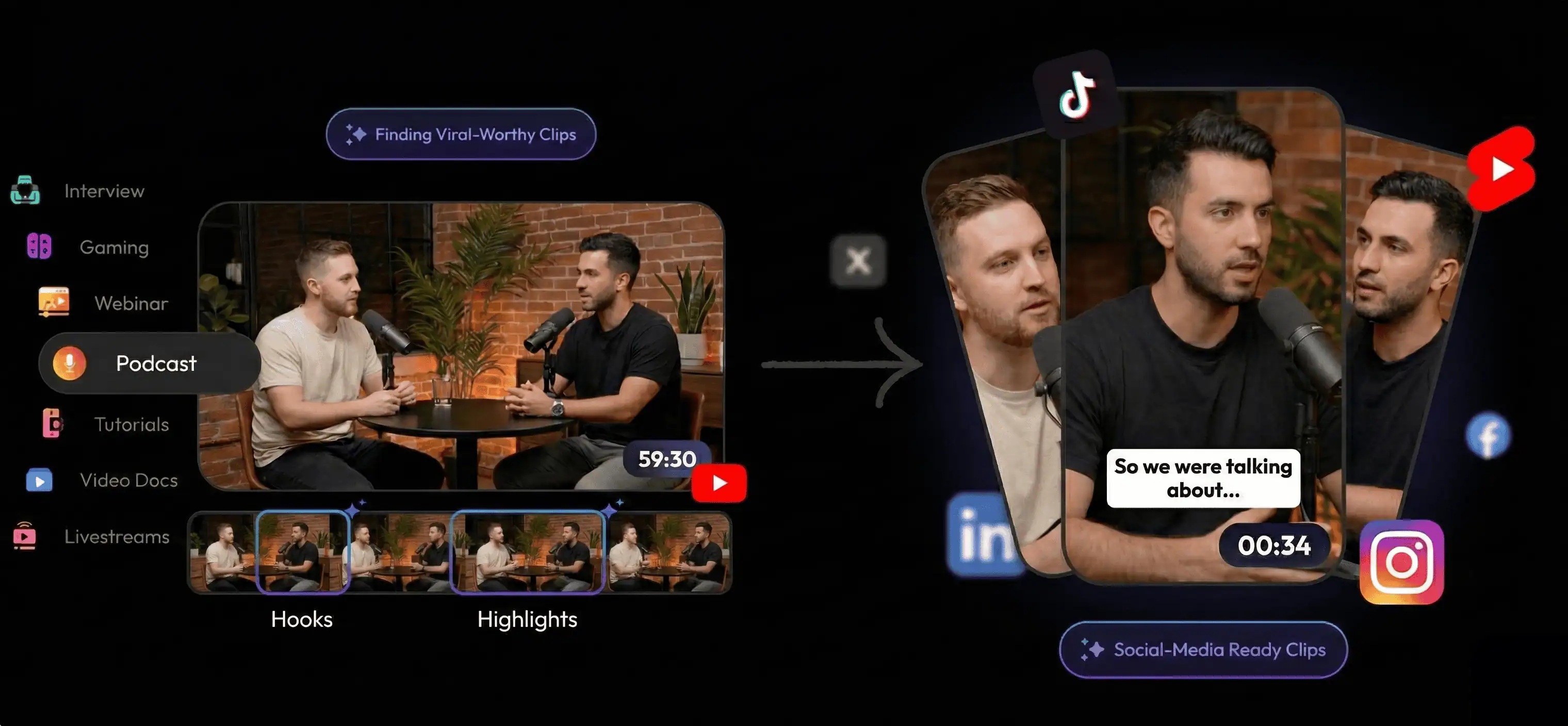
- Import a long video. Drop a podcast, interview, or webinar into Reelify.
- Review clip suggestions. Local processing surfaces candidate clips quickly on Apple Silicon.
- Trim and caption. Adjust timing, captions, and framing inside the local editor.
- Export locally. Clips stay on your device from start to finish.
Cloud vs Local: Privacy Comparison
| Decision factor | Cloud upload workflow | Reelify local workflow |
|---|---|---|
| Where your video lives | Uploaded to provider servers | Stays on your Mac |
| Retention policies | Defined by provider policy | No retention of source videos |
| Best fit | Non-sensitive or public footage | NDA, client, internal, or unreleased content |
| Processing speed | Upload queue + processing time | Local processing on Apple Silicon |
Who Should Prioritize Local Processing
Agencies and client work
For client or NDA content, the safest path is often a local workflow. Start with AI video clipping for client work and the corporate private clipper page.
Legal, compliance, or embargoed footage
If the footage cannot leave your device, a local clipper avoids the policy guesswork. See the NDA content page or AI clipper for lawyers.
Mac-first creators
If you already work on a Mac, the local AI video clipper page covers the platform-specific workflow.
FAQ
Does Opus Clip store my videos?
Opus Clip is a cloud-based tool, so it must upload videos to process them. Storage duration and retention depend on their policy, so review their terms for exact details.
Is cloud processing safe for client or NDA content?
It can be safe if you trust the provider's policies and controls. Many teams still prefer local processing for sensitive footage because it avoids uploads entirely.
Is Reelify fully offline?
Reelify processes video locally on Mac and avoids large video uploads. Some lightweight text data may be sent for AI analysis, but your source video stays on-device.
Can I try Reelify before upgrading?
Yes. You can start with the free local workflow and decide later if the advanced upgrade is worth it for your output.
Best next step: review Opus Clip's policy for retention details, then test a local workflow with Reelify to see if it fits your privacy requirements.