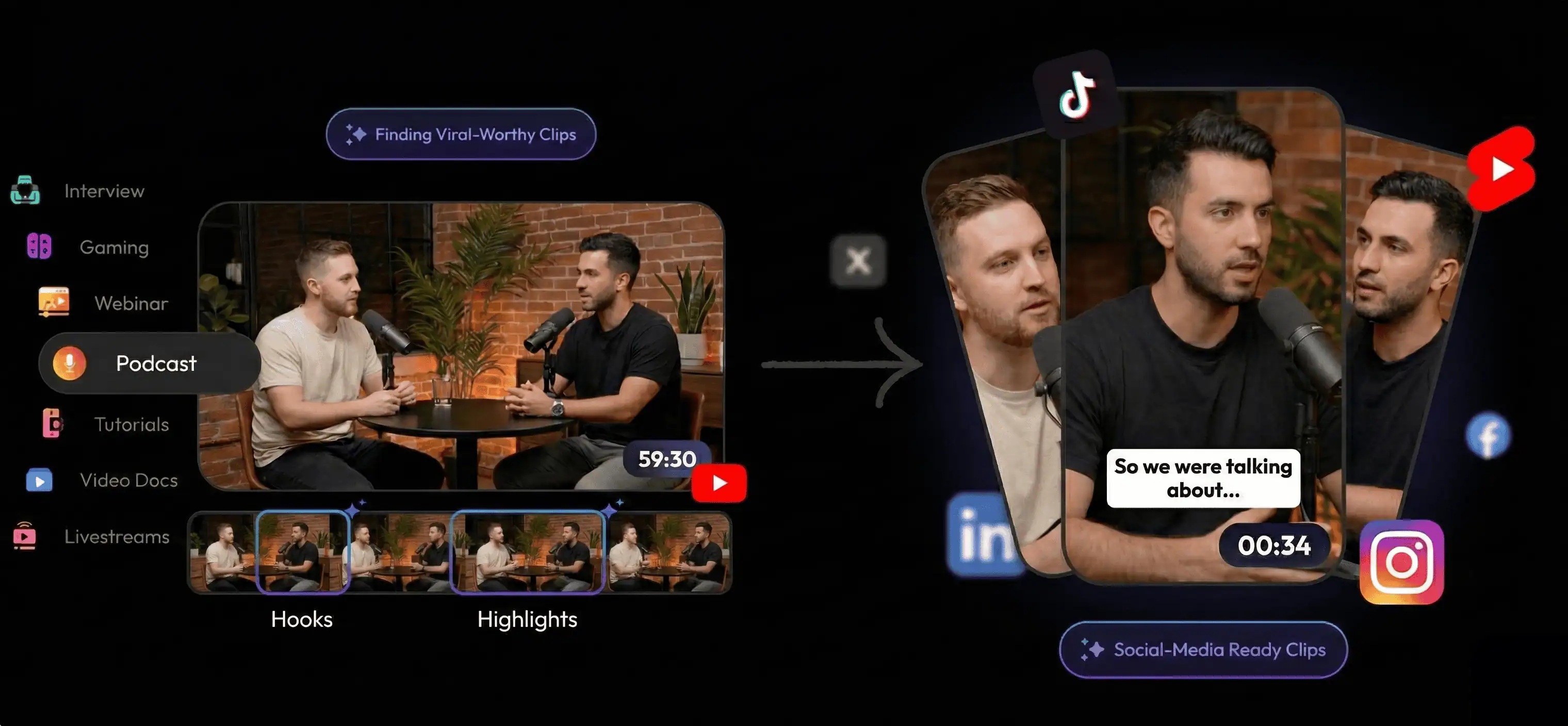
Short version: For faceless channels, Reelify AI generates short videos from your existing long videos, not synthetic video from prompts. It finds the best segments, adds captions that carry the context, and exports clip packs for Shorts, Reels, and TikTok on your Mac.
This page uses “generator” in a very specific sense: generating clip candidates from videos you already recorded. It is not about creating synthetic videos from prompts. If your main concern is scale, use the unlimited faceless clipping page. If your main concern is offline/local workflow, use the offline faceless clipper page. For the broader product overview, see AI video clip generator and local AI video clipper.
What We Tested
I tested a 73 minute faceless tutorial plus a 28 minute voiceover commentary on an M2 Mac. Starting from AI suggestions, I clipped 11 highlights in about 15 minutes.
- Clip naming:
Channel-Series-Time(example:Atlas-Workflow-16m11s). - Handles: 3 to 6 seconds of lead-in and lead-out for context.
- Exports: 1080x1920 review clips with captions for quick skim.
What an AI Video Generator Means for Faceless Channels
For faceless content, the generator surfaces clip candidates from your existing recordings. It does not invent new videos. The value is speed: you review AI picks, tighten the hooks, and export a batch you can schedule this week.
Faceless Inputs That Clip Best
Voiceover tutorials
Clear narration and screen capture make it easy to generate step clips.
List-style explainers
Numbered sections are perfect for short clip packs.
Before and after
Outcome-first moments create strong hooks without a facecam.
FAQ sections
Short answers make reliable standalone clips.
Faceless Clip Generator Workflow
Reelify keeps the workflow local so you can generate clips without per-minute pricing.
- Import your long video. Start with one main file and keep a consistent naming pattern.
- Review AI picks. Choose clips with clear hooks and self-contained context.
- Trim with handles. Keep 3 to 6 seconds on each side so the clip stands alone.
- Add captions and crop. Make clips readable in vertical or square formats.
- Export the clip pack. Save a batch for Shorts, Reels, and YouTube.
Clip naming that stays organized: use Channel-Series-Time so you can
batch schedule clips quickly.
Faceless Clip Pack Template
Keep the pack tight so you can publish consistently and compare hooks.
- 2 hook clips (different openers for the same section).
- 3 step clips (short summaries of the process).
- 2 payoff clips (the result or transformation).
- 1 FAQ clip (common question answered fast).
Manual Hunting vs AI Clip Generator
A generator helps you keep volume high without long edit sessions.
| Decision factor | Manual clip hunting | Reelify AI generator |
|---|---|---|
| Time to first clip | After full video review | Start from AI picks |
| Clip volume | Limited by time | Batch clip packs |
| Upload delays | Depends on tool | Local processing |
| Context accuracy | Easy to miss setup | Handles plus captions |
| Formats | Manual resize per platform | Vertical or square outputs |
Constraints to Plan For
- The generator uses existing footage; it does not create synthetic videos.
- AI suggestions are a starting point, not a replacement for review.
- Faceless clips rely on captions and clear hooks, so check readability before export.
FAQ
Does this generate new videos from scratch?
No. Reelify generates clips from your existing faceless videos. It does not create synthetic videos from prompts.
Does this work for faceless videos without a facecam?
Yes. Reelify works with faceless videos, screen recordings, and voiceover content as long as you can save the file locally.
Can I export vertical clips for Shorts and Reels?
Yes. You can export vertical clips with captions for Shorts, TikTok, and Reels.
Is the workflow offline?
The core clipping workflow runs locally on your Mac, so you can review and export clips without upload queues.
Best next step: generate a clip pack from one faceless video, export 6 to 8 clips, and track which hooks perform best.